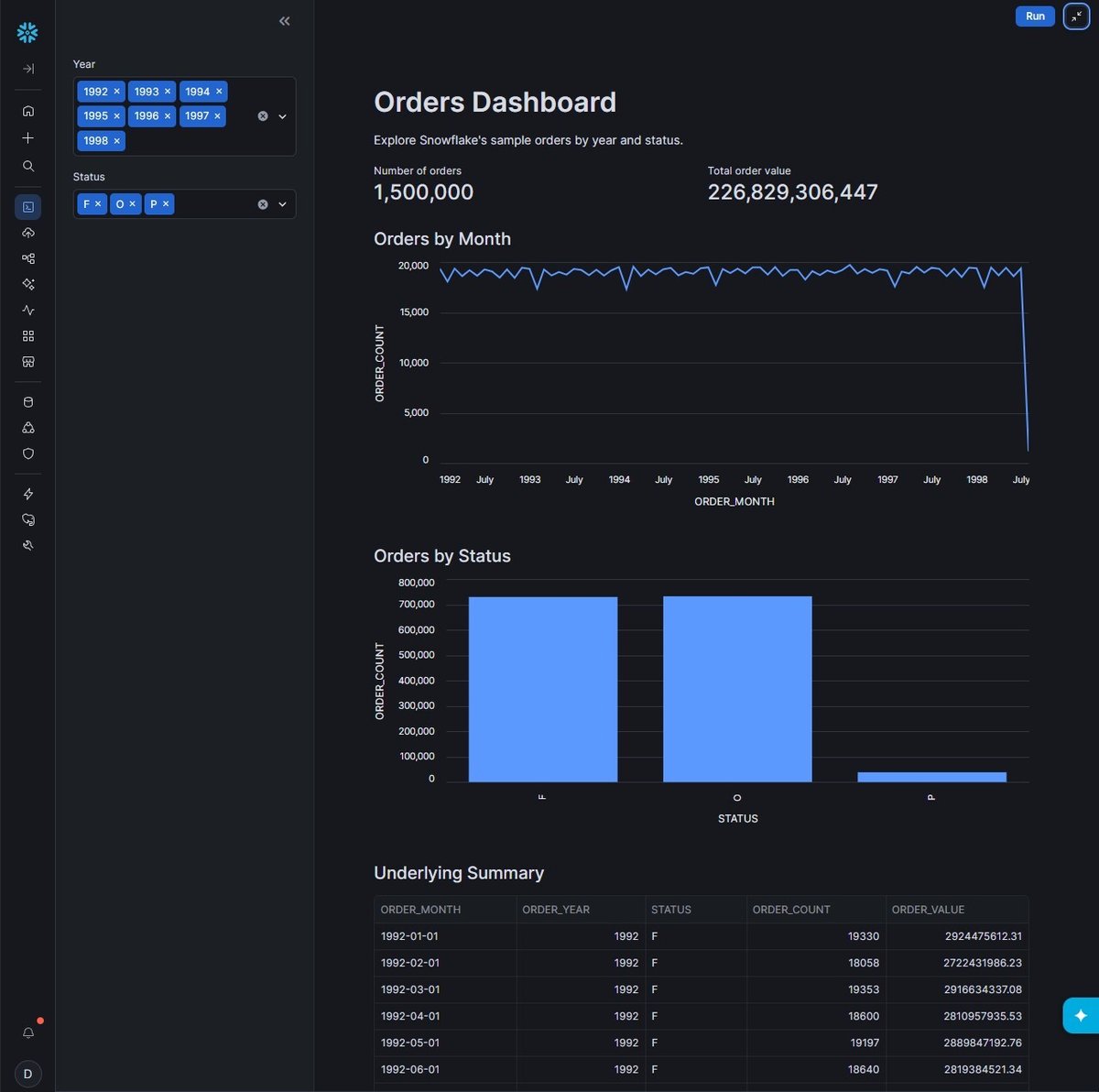
Snowflake makes it easy to store and query data, but a SQL result is not always the easiest way to share an answer. Streamlit lets you transfigure these results into an interactive dashboard with Python.
In this tutorial, you’ll build an orders dashboard inside Snowflake using its TPC-H sample data. You’ll add year and status filters, two summary metrics, a monthly line chart, a status bar chart, and a table that helps you check the results.
The example summarizes orders in Snowflake before loading them into the app. That keeps the result set small and gives you a SQL query you can validate independently of the dashboard.
Who This Tutorial Is For
This guide is for Snowflake users who can run basic SQL and are new to Streamlit. You can copy the complete Python example below (Note: you do not need to build a separate website or set up a local Python environment).
Before You Start
This tutorial follows the Snowsight Workspaces workflow with a container runtime. Have these ready:
- Access to Snowsight and a workspace.
- Access to SNOWFLAKE_SAMPLE_DATA.TPCH_SF1.ORDERS using the role that will run the app’s queries.
- An available compute pool with USAGE permission and a configured default compute pool for Workspaces.
- A query warehouse with USAGE permission for the app’s role, plus a default warehouse selected for your user.
- For deployment, a writable target location: USAGE on the target database and schema, and CREATE STREAMLIT on that schema. Use a database intended for your own apps, separate from the shared sample database.
Ask your Snowflake administrator to confirm the setup if any of these resources or permissions are missing. Snowflake documents the Workspaces prerequisites and app privilege requirements.
The compute pool runs the Python app; the warehouse executes its SQL queries. Both can incur Snowflake usage charges.
What Is Streamlit in Snowflake?
Streamlit is a Python framework for creating interactive data apps. Streamlit in Snowflake lets you build and share those apps within your Snowflake environment.
For this dashboard, viewers can explore a question such as “How did monthly order volume change in a particular year?” by changing filters. They can see the answer without editing the SQL themselves.
The dashboard has three parts:
- Data: The sample ORDERS table provides order dates, statuses, and amounts.
- SQL query: Snowflake summarizes the orders by month and status.
- Streamlit app: Python adds filters and displays metrics, charts, and the summary table.
Step 1: Check Access to the Sample Data
In a Snowsight SQL worksheet, select the role you intend to use for the app and a warehouse it can use. Run:
SELECT O_ORDERDATE, O_ORDERSTATUS, O_TOTALPRICE
FROM SNOWFLAKE_SAMPLE_DATA.TPCH_SF1.ORDERS
LIMIT 5;
You should receive five rows containing an order date, a status code, and an order amount. The particular rows could vary since this query does not state an ordering.
If the query fails, resolve data access or warehouse permissions before working on the Python code. A working query establishes that the source is available in that worksheet context; the app’s role must also have the required access.
 Start with a small query to check access to the data the dashboard will use.
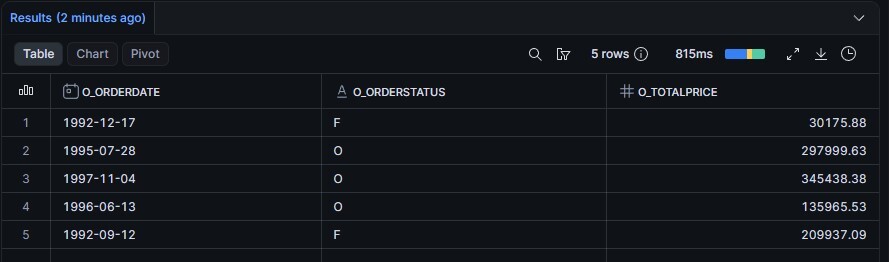 The returned rows confirm that the selected worksheet role can read the sample table.
Step 2: Create the Streamlit App
In Snowsight, open Workspaces, select a workspace, and choose + Add new → Streamlit app. Open the generated streamlit_app.py file.
Keep the other starter files Snowflake creates. They contain the app’s dependency, configuration, and deployment settings. Snowflake’s workspace creation guide describes this flow.
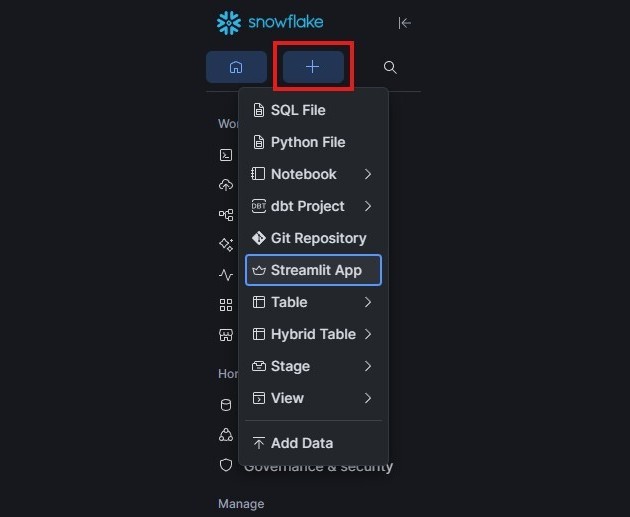 Choose Streamlit App from the Add new menu to create your app.
Step 3: Add the Dashboard Code
Replace the starter code in streamlit_app.py with this complete example:
import streamlit as st

st.title("Orders Dashboard")
st.write("Explore Snowflake's sample orders by year and status.")

conn = st.connection("snowflake")

# Summarize orders in Snowflake before loading them into the app.
orders = conn.query("""
    SELECT
        DATE_TRUNC('MONTH', O_ORDERDATE)::DATE AS ORDER_MONTH,
        YEAR(O_ORDERDATE) AS ORDER_YEAR,
        O_ORDERSTATUS AS STATUS,
        COUNT(*) AS ORDER_COUNT,
        SUM(O_TOTALPRICE) AS ORDER_VALUE
    FROM SNOWFLAKE_SAMPLE_DATA.TPCH_SF1.ORDERS
    GROUP BY 1, 2, 3
    ORDER BY 1, 3
""")

if orders.empty:
    st.warning("No orders were returned. Check the source query.")
    st.stop()

years = sorted(orders["ORDER_YEAR"].astype(int).unique().tolist())
statuses = sorted(orders["STATUS"].unique().tolist())

selected_years = st.sidebar.multiselect("Year", years, default=years)
selected_statuses = st.sidebar.multiselect(
    "Status", statuses, default=statuses
)

if not selected_years or not selected_statuses:
    st.info("Select at least one year and one status to see results.")
    st.stop()

filtered = orders[
    orders["ORDER_YEAR"].isin(selected_years)
    & orders["STATUS"].isin(selected_statuses)
]

if filtered.empty:
    st.info("No orders match these filters. Try another year or status.")
    st.stop()

left, right = st.columns(2)
left.metric("Number of orders", f"{filtered['ORDER_COUNT'].sum():,.0f}")
right.metric("Total order value", f"{filtered['ORDER_VALUE'].sum():,.2f}")
st.caption("Sample order amounts; total order value is not recognized revenue.")

monthly = (
    filtered.groupby("ORDER_MONTH", as_index=False)["ORDER_COUNT"]
    .sum()
    .sort_values("ORDER_MONTH")
)
by_status = (
    filtered.groupby("STATUS", as_index=False)["ORDER_COUNT"]
    .sum()
)

st.subheader("Orders by Month")
st.line_chart(monthly, x="ORDER_MONTH", y="ORDER_COUNT")

st.subheader("Orders by Status")
st.bar_chart(by_status, x="STATUS", y="ORDER_COUNT")

st.subheader("Underlying Summary")
st.dataframe(filtered, hide_index=True)
How the Code Works
st.connection("snowflake") uses the app’s Snowflake connection. This is the same connection approach shown in Snowflake’s dashboard example.
The SQL returns one row per month and status, with an order count and order value for each group. The year and status filters select from those summarized rows. The metrics, both charts, and the table all use the same filtered data, so they stay aligned.
Notice that the order-count metric sums ORDER_COUNT. Counting rows in filtered would count month/status groups, which would give the wrong number of orders.
The code also distinguishes two empty states: a cleared filter and a selection that has no matching orders. Each gets a useful message before the app stops rendering the charts.
Why Summarize in Snowflake First?
The questions in this dashboard only need monthly totals and status breakdowns. Fetching individual orders would transfer detail the charts never use. Aggregating in SQL reduces the number of rows passed to Python and lets you check the calculation directly in a worksheet.
This choice also sets the dashboard’s limits. A monthly summary cannot show daily trends or individual orders. If you need that detail later, change the query’s grouping or add a separate detail query. For larger datasets or more filter dimensions, consider applying filters in SQL instead of loading every possible summary into the app.
Name the Metrics Carefully
Total order value is the sum of O_TOTALPRICE from the sample table. It should not be presented as recognized revenue. The example also leaves off a currency symbol because it does not establish a business currency.
A dashboard can calculate a number correctly and still mislead readers through its label. When adapting this example, confirm what each amount represents, whether currencies can be combined, and how cancellations or refunds should affect the total.
Step 4: Run the App and Check the Results
Select Run above the editor. You should see two metrics, two charts, and the summary table. All available years and statuses are selected initially.
Before sharing the dashboard, check these behaviours:
- Select one year and one status. Confirm the table contains only those selections and that the charts update.
- Clear the year selection, then restore it and clear the status selection. Each should show a prompt to choose at least one value.
- Restore all selections. Confirm that the full dashboard returns.
- Compare a filtered result against a direct SQL query.
For the last check, select 1992 and F in the dashboard, then run:
SELECT
    COUNT(*) AS ORDER_COUNT,
    SUM(O_TOTALPRICE) AS ORDER_VALUE
FROM SNOWFLAKE_SAMPLE_DATA.TPCH_SF1.ORDERS
WHERE YEAR(O_ORDERDATE) = 1992
  AND O_ORDERSTATUS = 'F';
The query’s order count and order value should match the two dashboard metrics for the same selections. This checks the calculations as well as the appearance of the charts.
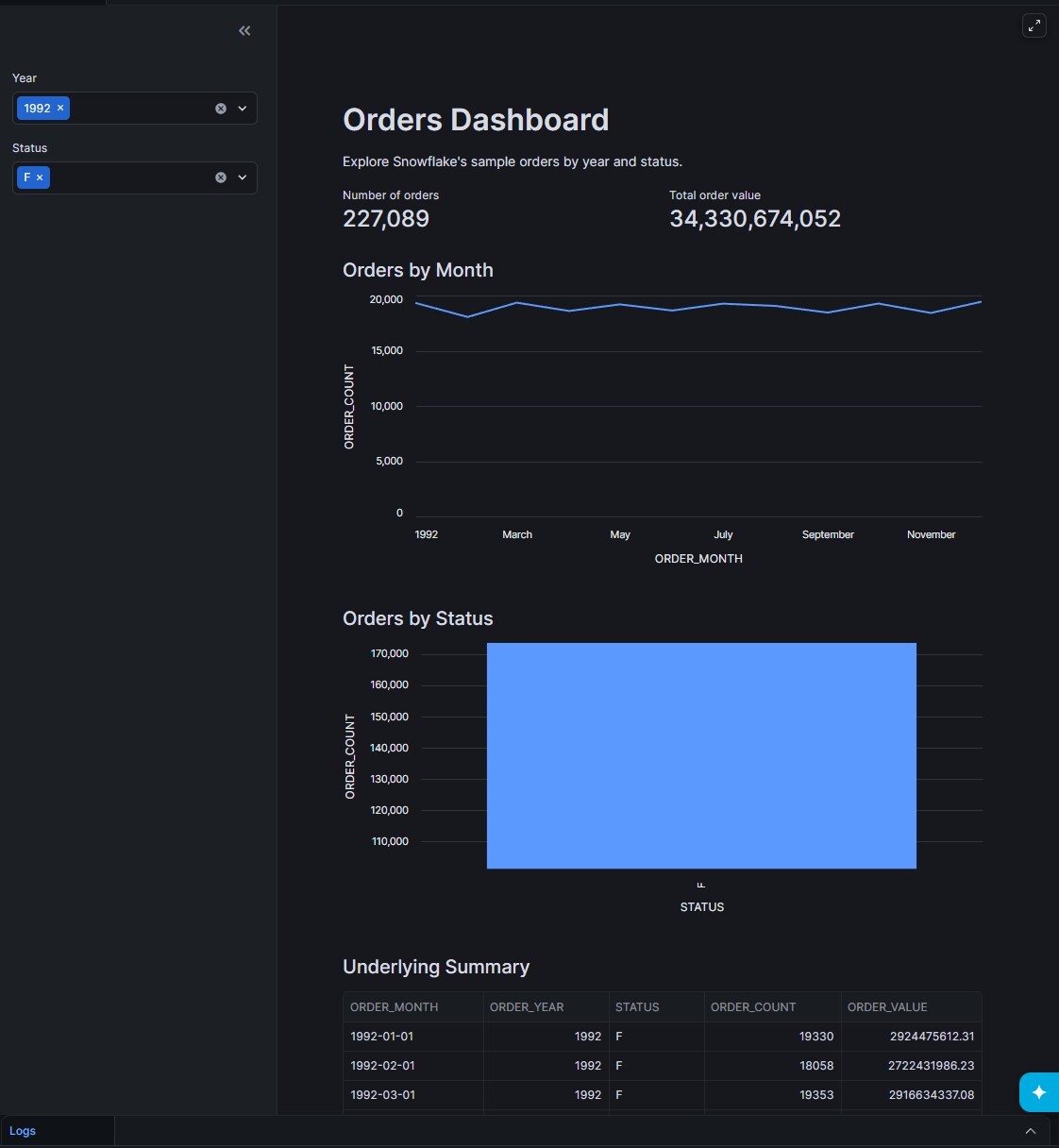 Selecting 1992 and F updates the metrics, charts, and summary table. Order values in this screenshot are rounded to whole numbers.
Step 5: Deploy and Share the Dashboard
Select Deploy in the workspace project pane. Review the app title, target database and schema, compute pool, query warehouse, and viewer roles under Sharing, then deploy. See Snowflake’s deployment instructions.
Users with access can open the deployed app under Projects → Streamlit. When you change the workspace code later, deploy again to update the shared version.
By default, deployed apps query data with the owner role’s privileges. A viewer may therefore see data through an app even without direct access to its source table. Before using company data, check what the app displays and which roles can open it. Snowflake explains this in its owner’s rights documentation.
Common Issues
I Cannot Query SNOWFLAKE_SAMPLE_DATA
Ask your administrator to confirm that the sample database exists and that the app’s role can read it. Also check warehouse access. A query that succeeds in a worksheet with a different role does not establish that the app has the same permissions.
The Dashboard Shows No Results
Check the message on the screen. If a selection is empty, choose at least one year and one status. If no rows match, try another combination. If the source query returns nothing, run that query in a worksheet to investigate the data before changing the chart code.
The App Works for Me but Another User Cannot Open It
Confirm that you deployed the app and shared it with a role the viewer can use. Viewers need USAGE on the app and its parent database and schema. In a managed access schema, a schema owner or an appropriately privileged administrator may need to grant access. See Snowflake’s viewer privilege requirements.
Make It Your Own
Start with one dataset from your own environment. Replace the source table and column names in the SQL, keeping the output aliases used by the Python code or updating those references together.
Validate the query and metric definitions first. Then add one filter or visualization at a time, checking that the displayed totals still agree with SQL. If several dashboards need the same calculations, consider moving that shared logic into a view or a dbt model.
The sample dashboard gives you a small, understandable starting point: a query you can verify, controls that answer a clear question, and a shared app your team can use.
About the Author
Sugreev Sran is an Associate Analytics Consultant at DSC, working with Snowflake, dbt, and Streamlit to build data pipelines and analytics dashboards.